

How to Create Windows Server 2022 Template in vSphere - using Packer
Automating a Windows Server 2022 template for vSphere with Packer, using an unattend file and PowerShell provisioning scripts.
Overview
Packer uses the HashiCorp Configuration Language (HCL), which allows concise descriptions of the steps required to produce a build. See the HCL templates reference.
This is the file structure I’ve used:
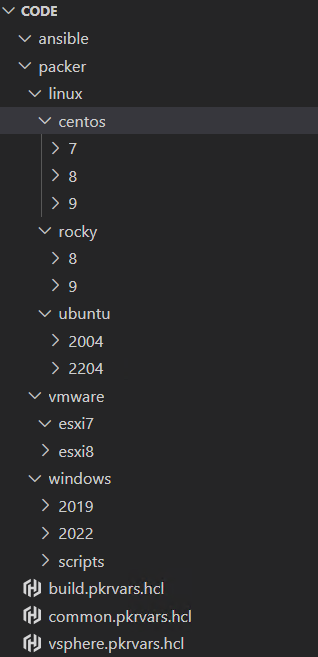
The two files below are shared by every template in the series, and are called by the Packer tool itself:
1. common.pkrvars.hcl
// Virtual Machine Settings
common_vm_version           = 19
common_tools_upgrade_policy = true
common_remove_cdrom         = true

// Template and Content Library Settings
common_template_conversion         = false
common_content_library_name        = "vm_library"
common_content_library_ovf         = false
common_content_library_destroy     = false
common_content_library_skip_export = false

// Removable Media Settings
common_iso_datastore = "OS_ISO"

// Boot and Provisioning Settings
common_data_source       = "http"
common_http_ip           = null
common_http_port_min     = 8000
common_http_port_max     = 8099
common_ip_wait_timeout   = "20m"
common_ip_settle_timeout = "5s"
common_shutdown_timeout  = "15m"
2. vsphere.pkrvars.hcl
// vSphere Credentials - replace with your configuration
vsphere_endpoint            = "vcsa.cloudbricks.local"
vsphere_username            = "Administrator@vsphere.local"
vsphere_password            = "SuperSecretPassword"
vsphere_insecure_connection = false

// vSphere Settings
vsphere_datacenter                     = "Lab"
//vsphere_cluster                      = "Cluster"
vsphere_host                           = "esx-base.cloudbricks.local"
vsphere_datastore                      = "SSD"
vsphere_network                        = "cloudbricks"
vsphere_folder                         = "Templates"

vsphere_set_host_for_datastore_uploads = false
Below files are used for Windows Server template
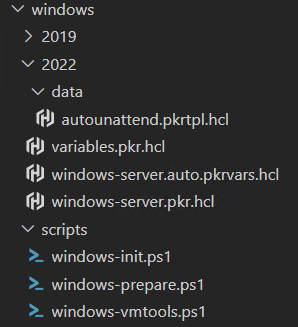
1. variables.pkr.hcl
Contains all input variables to which you assign values. Any explicit values in this file will override the declared default values (these are found in the following file). The auto extension enables Packer to use this file automatically. It does not require you to reference or pass it in the command line explicitly
//  Defines the input variables.

// vSphere Credentials

variable "vsphere_endpoint" {
  type        = string
  description = "The fully qualified domain name or IP address of the vCenter Server instance."
}

variable "vsphere_username" {
  type        = string
  description = "The username to login to the vCenter Server instance."
  sensitive   = true
}

variable "vsphere_password" {
  type        = string
  description = "The password for the login to the vCenter Server instance."
  sensitive   = true
}

variable "vsphere_insecure_connection" {
  type        = bool
  description = "Do not validate vCenter Server TLS certificate."
}

// vSphere Settings

variable "vsphere_datacenter" {
  type        = string
  description = "The name of the target vSphere datacenter."
  default     = ""
}

variable "vsphere_cluster" {
  type        = string
  description = "The name of the target vSphere cluster."
  default     = ""
}

variable "vsphere_host" {
  type        = string
  description = "The name of the target ESXi host."
  default     = ""
}

variable "vsphere_datastore" {
  type        = string
  description = "The name of the target vSphere datastore."
}

variable "vsphere_network" {
  type        = string
  description = "The name of the target vSphere network segment."
}

variable "vsphere_folder" {
  type        = string
  description = "The name of the target vSphere folder."
  default     = ""
}

variable "vsphere_resource_pool" {
  type        = string
  description = "The name of the target vSphere resource pool."
  default     = ""
}

variable "vsphere_set_host_for_datastore_uploads" {
  type        = bool
  description = "Set this to true if packer should use the host for uploading files to the datastore."
  default     = false
}

// Installer Settings

variable "vm_inst_os_language" {
  type        = string
  description = "The installation operating system lanugage."
  default     = "en-US"
}

variable "vm_inst_os_keyboard" {
  type        = string
  description = "The installation operating system keyboard input."
  default     = "en-US"
}

variable "vm_inst_os_image_standard_core" {
  type        = string
  description = "The installation operating system image input for Microsoft Windows Standard Core."
}

variable "vm_inst_os_image_standard_desktop" {
  type        = string
  description = "The installation operating system image input for Microsoft Windows Standard."
}

variable "vm_inst_os_kms_key_standard" {
  type        = string
  description = "The installation operating system KMS key input for Microsoft Windows Standard edition."
}

variable "vm_inst_os_image_datacenter_core" {
  type        = string
  description = "The installation operating system image input for Microsoft Windows Datacenter Core."
}

variable "vm_inst_os_image_datacenter_desktop" {
  type        = string
  description = "The installation operating system image input for Microsoft Windows Datacenter."
}

variable "vm_inst_os_kms_key_datacenter" {
  type        = string
  description = "The installation operating system KMS key input for Microsoft Windows Datacenter edition."
}

// Virtual Machine Settings

variable "vm_guest_os_language" {
  type        = string
  description = "The guest operating system lanugage."
  default     = "en-US"
}

variable "vm_guest_os_keyboard" {
  type        = string
  description = "The guest operating system keyboard input."
  default     = "en-US"
}

variable "vm_guest_os_timezone" {
  type        = string
  description = "The guest operating system timezone."
  default     = "UTC"
}

variable "vm_guest_os_family" {
  type        = string
  description = "The guest operating system family. Used for naming and VMware Tools."
}

variable "vm_guest_os_name" {
  type        = string
  description = "The guest operating system name. Used for naming."
}

variable "vm_guest_os_version" {
  type        = string
  description = "The guest operating system version. Used for naming."
}

variable "vm_guest_os_edition_standard" {
  type        = string
  description = "The guest operating system edition. Used for naming."
  default     = "standard"
}

variable "vm_guest_os_edition_datacenter" {
  type        = string
  description = "The guest operating system edition. Used for naming."
  default     = "datacenter"
}

variable "vm_guest_os_experience_core" {
  type        = string
  description = "The guest operating system minimal experience. Used for naming."
  default     = "core"
}

variable "vm_guest_os_experience_desktop" {
  type        = string
  description = "The guest operating system desktop experience. Used for naming."
  default     = "dexp"
}

variable "vm_guest_os_type" {
  type        = string
  description = "The guest operating system type, also know as guestid."
}

variable "vm_firmware" {
  type        = string
  description = "The virtual machine firmware."
  default     = "efi-secure"
}

variable "vm_cdrom_type" {
  type        = string
  description = "The virtual machine CD-ROM type."
  default     = "sata"
}

variable "vm_cpu_count" {
  type        = number
  description = "The number of virtual CPUs."
}

variable "vm_cpu_cores" {
  type        = number
  description = "The number of virtual CPUs cores per socket."
}

variable "vm_cpu_hot_add" {
  type        = bool
  description = "Enable hot add CPU."
}

variable "vm_mem_size" {
  type        = number
  description = "The size for the virtual memory in MB."
}

variable "vm_mem_hot_add" {
  type        = bool
  description = "Enable hot add memory."
}

variable "vm_disk_size" {
  type        = number
  description = "The size for the virtual disk in MB."
}

variable "vm_disk_controller_type" {
  type        = list(string)
  description = "The virtual disk controller types in sequence."
  default     = ["pvscsi"]
}

variable "vm_disk_thin_provisioned" {
  type        = bool
  description = "Thin provision the virtual disk."
  default     = true
}

variable "vm_network_card" {
  type        = string
  description = "The virtual network card type."
  default     = "vmxnet3"
}

variable "common_vm_version" {
  type        = number
  description = "The vSphere virtual hardware version."
}

variable "common_tools_upgrade_policy" {
  type        = bool
  description = "Upgrade VMware Tools on reboot."
  default     = true
}

variable "common_remove_cdrom" {
  type        = bool
  description = "Remove the virtual CD-ROM(s)."
  default     = true
}

// Template and Content Library Settings

variable "common_template_conversion" {
  type        = bool
  description = "Convert the virtual machine to template. Must be 'false' for content library."
  default     = false
}

variable "common_content_library_name" {
  type        = string
  description = "The name of the target vSphere content library, if used."
  default     = null
}

variable "common_content_library_ovf" {
  type        = bool
  description = "Export to content library as an OVF template."
  default     = true
}

variable "common_content_library_destroy" {
  type        = bool
  description = "Delete the virtual machine after exporting to the content library."
  default     = true
}

variable "common_content_library_skip_export" {
  type        = bool
  description = "Skip exporting the virtual machine to the content library. Option allows for testing/debugging without saving the machine image."
  default     = false
}

// OVF Export Settings

variable "common_ovf_export_enabled" {
  type        = bool
  description = "Enable OVF artifact export."
  default     = false
}

variable "common_ovf_export_overwrite" {
  type        = bool
  description = "Overwrite existing OVF artifact."
  default     = true
}

// Removable Media Settings

variable "common_iso_datastore" {
  type        = string
  description = "The name of the source vSphere datastore for the guest operating system ISO."
}

variable "iso_path" {
  type        = string
  description = "The path on the source vSphere datastore for the guest operating system ISO."
}

variable "iso_file" {
  type        = string
  description = "The file name of the guest operating system ISO."
}

// Boot Settings

variable "common_data_source" {
  type        = string
  description = "The provisioning data source. One of `http` or `disk`."
}

variable "common_http_ip" {
  type        = string
  description = "Define an IP address on the host to use for the HTTP server."
  default     = null
}

variable "common_http_port_min" {
  type        = number
  description = "The start of the HTTP port range."
}

variable "common_http_port_max" {
  type        = number
  description = "The end of the HTTP port range."
}

variable "vm_boot_order" {
  type        = string
  description = "The boot order for virtual machines devices."
  default     = "disk,cdrom"
}

variable "vm_boot_wait" {
  type        = string
  description = "The time to wait before boot."
}

variable "vm_boot_command" {
  type        = list(string)
  description = "The virtual machine boot command."
  default     = []
}

variable "vm_shutdown_command" {
  type        = string
  description = "Command(s) for guest operating system shutdown."
}

variable "common_ip_wait_timeout" {
  type        = string
  description = "Time to wait for guest operating system IP address response."
}

variable "common_ip_settle_timeout" {
  type        = string
  description = "Time to wait for guest operating system IP to settle down."
  default     = "5s"
}

variable "common_shutdown_timeout" {
  type        = string
  description = "Time to wait for guest operating system shutdown."
}

// Communicator Settings and Credentials


// Communicator Credentials

variable "communicator_port" {
  type        = string
  description = "The port for the communicator protocol."
}

variable "communicator_timeout" {
  type        = string
  description = "The timeout for the communicator protocol."
}

// Provisioner Settings

variable "scripts" {
  type        = list(string)
  description = "A list of scripts and their relative paths to transfer and run."
  default     = []
}

variable "inline" {
  type        = list(string)
  description = "A list of commands to run."
  default     = []
}

// HCP Packer Settings

variable "common_hcp_packer_registry_enabled" {
  type        = bool
  description = "Enable the HCP Packer registry."
  default     = false
}
2. windows-server.pkr.hcl
This file contains the blocks as mentioned in the refernece, from declared variables, build and source blocks. Packer uses this to automate the VM template creation.
//  BLOCK: packer
//  The Packer configuration.

packer {
  required_version = ">= 1.9.4"
  required_plugins {
    vsphere = {
      source  = "github.com/hashicorp/vsphere"
      version = ">= 1.2.1"
    }

  }
}

//  BLOCK: data
//  Defines the data sources.

//  BLOCK: locals
//  Defines the local variables.

locals {
  iso_paths                  = ["[${var.common_iso_datastore}] ${var.iso_path}/${var.iso_file}",
  "[] /vmimages/tools-isoimages/${var.vm_guest_os_family}.iso"]
  vm_name                    = "WIN2022"

}

//  BLOCK: source
//  Defines the builder configuration blocks.


source "vsphere-iso" "WIN2022_Std" {

  // vCenter Server Endpoint Settings and Credentials
  vcenter_server      = var.vsphere_endpoint
  username            = var.vsphere_username
  password            = var.vsphere_password
  insecure_connection = var.vsphere_insecure_connection

  // vSphere Settings
  datacenter                     = var.vsphere_datacenter
  cluster                        = var.vsphere_cluster
  host                           = var.vsphere_host
  datastore                      = var.vsphere_datastore
  folder                         = var.vsphere_folder
  resource_pool                  = var.vsphere_resource_pool
  set_host_for_datastore_uploads = var.vsphere_set_host_for_datastore_uploads

  // Virtual Machine Settings
  vm_name              = local.vm_name
  guest_os_type        = var.vm_guest_os_type
  firmware             = var.vm_firmware
  CPUs                 = var.vm_cpu_count
  cpu_cores            = var.vm_cpu_cores
  CPU_hot_plug         = var.vm_cpu_hot_add
  RAM                  = var.vm_mem_size
  RAM_hot_plug         = var.vm_mem_hot_add
  cdrom_type           = var.vm_cdrom_type
  disk_controller_type = var.vm_disk_controller_type
  storage {
    disk_size             = var.vm_disk_size
    disk_controller_index = 0
    disk_thin_provisioned = var.vm_disk_thin_provisioned
  }
  network_adapters {
    network      = var.vsphere_network
    network_card = var.vm_network_card
  }
  vm_version           = var.common_vm_version
  remove_cdrom         = var.common_remove_cdrom
  tools_upgrade_policy = var.common_tools_upgrade_policy


  // Removable Media Settings
  iso_paths = local.iso_paths
  cd_files = [
    "/opt/code/packer/windows/scripts/windows-init.ps1",
    "/opt/code/packer/windows/scripts/windows-prepare.ps1",
    "/opt/code/packer/windows/scripts/windows-vmtools.ps1",

  ]
  cd_content = {
    "autounattend.xml" = templatefile("${abspath(path.root)}/data/autounattend.pkrtpl.hcl", {
      build_username       = "Administrator"
      build_password       = "VMware1!"
      vm_inst_os_language  = var.vm_inst_os_language
      vm_inst_os_keyboard  = var.vm_inst_os_keyboard
      vm_inst_os_image     = var.vm_inst_os_image_standard_desktop
      vm_inst_os_kms_key   = var.vm_inst_os_kms_key_standard
      vm_guest_os_language = var.vm_guest_os_language
      vm_guest_os_keyboard = var.vm_guest_os_keyboard
      vm_guest_os_timezone = var.vm_guest_os_timezone
    })
  }

  // Boot and Provisioning Settings
  http_port_min     = var.common_http_port_min
  http_port_max     = var.common_http_port_max
  boot_order        = var.vm_boot_order
  boot_wait         = var.vm_boot_wait
  boot_command      = var.vm_boot_command
  ip_wait_timeout   = var.common_ip_wait_timeout
  ip_settle_timeout = var.common_ip_settle_timeout
  shutdown_command  = var.vm_shutdown_command
  shutdown_timeout  = var.common_shutdown_timeout

  // Communicator Settings and Credentials
  communicator   = "winrm"
  winrm_username = "Administrator"
  winrm_password = "VMware1!"
  winrm_port     = var.communicator_port
  winrm_timeout  = var.communicator_timeout

  // Template and Content Library Settings
  convert_to_template = true

}


//  BLOCK: build
//  Defines the builders to run, provisioners, and post-processors.

build {
  sources = [

    "source.vsphere-iso.WIN2022_Std"

  ]


provisioner "powershell" {
        scripts           = formatlist("${path.cwd}/windows/scripts/%s", var.scripts)
  }

}
3. windows-server.auto.pkrvars.hcl
Once a variable is declared in the configuration, we can set it as individual or using *.auto.pkrvars.hcl
Individually, with the -var foo=bar command line option.
In variable definitions files, either specified on the command line with the -var-files values.pkrvars.hcl or automatically loaded (*.auto.pkrvars.hcl).
// Installation Operating System Metadata
vm_inst_os_language                 = "en-US"
vm_inst_os_keyboard                 = "en-GB"
vm_inst_os_image_standard_core      = "Windows Server 2022 SERVERSTANDARDCORE"
vm_inst_os_image_standard_desktop   = "Windows Server 2022 SERVERSTANDARD"
vm_inst_os_kms_key_standard         = "VDYBN-27WPP-V4HQT-9VMD4-VMK7H"
vm_inst_os_image_datacenter_core    = "Windows Server 2022 SERVERDATACENTERCORE"
vm_inst_os_image_datacenter_desktop = "Windows Server 2022 SERVERDATACENTER"
vm_inst_os_kms_key_datacenter       = "WX4NM-KYWYW-QJJR4-XV3QB-6VM33"

// Guest Operating System Metadata
vm_guest_os_language           = "en-US"
vm_guest_os_keyboard           = "en-GB"
vm_guest_os_timezone           = "GMT Standard Time"
vm_guest_os_family             = "windows"
vm_guest_os_name               = "server"
vm_guest_os_version            = "2022"
vm_guest_os_edition_standard   = "standard"
vm_guest_os_edition_datacenter = "datacenter"
vm_guest_os_experience_core    = "core"
vm_guest_os_experience_desktop = "dexp"

// Virtual Machine Guest Operating System Setting
vm_guest_os_type = "windows2019srvNext_64Guest"

// Virtual Machine Hardware Settings
vm_firmware              = "efi-secure"
vm_cdrom_type            = "sata"
vm_cpu_count             = 2
vm_cpu_cores             = 1
vm_cpu_hot_add           = false
vm_mem_size              = 4096
vm_mem_hot_add           = false
vm_disk_size             = 102400
vm_disk_controller_type  = ["pvscsi"]
vm_disk_thin_provisioned = true
vm_network_card          = "vmxnet3"

// Removable Media Settings
iso_path = "ISO"
iso_file = "WIN2022_Eval.iso"

// Boot Settings
vm_boot_order       = "disk,cdrom"
vm_boot_wait        = "2s"
vm_boot_command     = ["<spacebar>"]
vm_shutdown_command = "shutdown /s /t 10 /f /d p:4:1 /c \"Shutdown by Packer\""

// Communicator Settings
communicator_port    = 5985
communicator_timeout = "12h"

// Provisioner Settings
scripts = ["/windows-prepare.ps1"]
inline = [
  "Get-EventLog -LogName * | ForEach { Clear-EventLog -LogName $_.Log }"
]
4. autounattend.pkrtpl.hcl under data folder
Windows Server 2022 Autounttend.xml content
<?xml version="1.0" encoding="UTF-8"?>
<unattend xmlns="urn:schemas-microsoft-com:unattend">
   <settings pass="windowsPE">
      <component xmlns:wcm="http://schemas.microsoft.com/WMIConfig/2002/State" xmlns:xsi="http://www.w3.org/2001/XMLSchema-instance" name="Microsoft-Windows-International-Core-WinPE" processorArchitecture="amd64" publicKeyToken="31bf3856ad364e35" language="neutral" versionScope="nonSxS">
         <SetupUILanguage>
            <UILanguage>${vm_inst_os_language}</UILanguage>
         </SetupUILanguage>
         <InputLocale>${vm_inst_os_keyboard}</InputLocale>
         <SystemLocale>${vm_inst_os_language}</SystemLocale>
         <UILanguage>${vm_inst_os_language}</UILanguage>
         <UILanguageFallback>${vm_inst_os_language}</UILanguageFallback>
         <UserLocale>${vm_inst_os_language}</UserLocale>
      </component>
      <component xmlns:wcm="http://schemas.microsoft.com/WMIConfig/2002/State" xmlns:xsi="http://www.w3.org/2001/XMLSchema-instance" name="Microsoft-Windows-PnpCustomizationsWinPE" processorArchitecture="amd64" publicKeyToken="31bf3856ad364e35" language="neutral" versionScope="nonSxS">
         <DriverPaths>
            <PathAndCredentials wcm:action="add" wcm:keyValue="1">
               <Path>E:\Program Files\VMware\VMware Tools\Drivers\pvscsi\Win8\amd64</Path>
            </PathAndCredentials>
         </DriverPaths>
      </component>
      <component xmlns:wcm="http://schemas.microsoft.com/WMIConfig/2002/State" xmlns:xsi="http://www.w3.org/2001/XMLSchema-instance" name="Microsoft-Windows-Setup" processorArchitecture="amd64" publicKeyToken="31bf3856ad364e35" language="neutral" versionScope="nonSxS">
         <DiskConfiguration>
            <Disk wcm:action="add">
               <DiskID>0</DiskID>
               <WillWipeDisk>true</WillWipeDisk>
               <CreatePartitions>
                  <!-- Windows RE Tools partition -->
                  <CreatePartition wcm:action="add">
                     <Order>1</Order>
                     <Type>Primary</Type>
                     <Size>300</Size>
                  </CreatePartition>
                  <!-- System partition (ESP) -->
                  <CreatePartition wcm:action="add">
                     <Order>2</Order>
                     <Type>EFI</Type>
                     <Size>100</Size>
                  </CreatePartition>
                  <!-- Microsoft reserved partition (MSR) -->
                  <CreatePartition wcm:action="add">
                     <Order>3</Order>
                     <Type>MSR</Type>
                     <Size>128</Size>
                  </CreatePartition>
                  <!-- Windows partition -->
                  <CreatePartition wcm:action="add">
                     <Order>4</Order>
                     <Type>Primary</Type>
                     <Extend>true</Extend>
                  </CreatePartition>
               </CreatePartitions>
               <ModifyPartitions>
                  <!-- Windows RE Tools partition -->
                  <ModifyPartition wcm:action="add">
                     <Order>1</Order>
                     <PartitionID>1</PartitionID>
                     <Label>WINRE</Label>
                     <Format>NTFS</Format>
                     <TypeID>DE94BBA4-06D1-4D40-A16A-BFD50179D6AC</TypeID>
                  </ModifyPartition>
                  <!-- System partition (ESP) -->
                  <ModifyPartition wcm:action="add">
                     <Order>2</Order>
                     <PartitionID>2</PartitionID>
                     <Label>System</Label>
                     <Format>FAT32</Format>
                  </ModifyPartition>
                  <!-- MSR partition does not need to be modified -->
                  <ModifyPartition wcm:action="add">
                     <Order>3</Order>
                     <PartitionID>3</PartitionID>
                  </ModifyPartition>
                  <!-- Windows partition -->
                  <ModifyPartition wcm:action="add">
                     <Order>4</Order>
                     <PartitionID>4</PartitionID>
                     <Label>OS</Label>
                     <Letter>C</Letter>
                     <Format>NTFS</Format>
                  </ModifyPartition>
               </ModifyPartitions>
            </Disk>
         </DiskConfiguration>
         <ImageInstall>
            <OSImage>
               <InstallFrom>
                  <MetaData wcm:action="add">
                     <Key>/IMAGE/NAME</Key>
                     <Value>${vm_inst_os_image}</Value>
                  </MetaData>
               </InstallFrom>
               <InstallTo>
                  <DiskID>0</DiskID>
                  <PartitionID>4</PartitionID>
               </InstallTo>
            </OSImage>
         </ImageInstall>
         <UserData>
            <AcceptEula>true</AcceptEula>
            <FullName>Administrator</FullName>
            <Organization>Administrator</Organization>
            <ProductKey>
               <Key>${vm_inst_os_kms_key}</Key>
               <WillShowUI>OnError</WillShowUI>
            </ProductKey>
         </UserData>
         <EnableFirewall>false</EnableFirewall>
      </component>
   </settings>
   <settings pass="offlineServicing">
      <component xmlns:wcm="http://schemas.microsoft.com/WMIConfig/2002/State" xmlns:xsi="http://www.w3.org/2001/XMLSchema-instance" name="Microsoft-Windows-LUA-Settings" processorArchitecture="amd64" publicKeyToken="31bf3856ad364e35" language="neutral" versionScope="nonSxS">
         <EnableLUA>false</EnableLUA>
      </component>
   </settings>
   <settings pass="generalize">
      <component xmlns:wcm="http://schemas.microsoft.com/WMIConfig/2002/State" xmlns:xsi="http://www.w3.org/2001/XMLSchema-instance" name="Microsoft-Windows-Security-SPP" processorArchitecture="amd64" publicKeyToken="31bf3856ad364e35" language="neutral" versionScope="nonSxS">
         <SkipRearm>1</SkipRearm>
      </component>
   </settings>
   <settings pass="specialize">
      <component xmlns:wcm="http://schemas.microsoft.com/WMIConfig/2002/State" xmlns:xsi="http://www.w3.org/2001/XMLSchema-instance" name="Microsoft-Windows-Shell-Setup" processorArchitecture="amd64" publicKeyToken="31bf3856ad364e35" language="neutral" versionScope="nonSxS">
         <OEMInformation>
            <HelpCustomized>false</HelpCustomized>
         </OEMInformation>
         <TimeZone>${vm_guest_os_timezone}</TimeZone>
         <RegisteredOwner />
      </component>
      <component xmlns:wcm="http://schemas.microsoft.com/WMIConfig/2002/State" xmlns:xsi="http://www.w3.org/2001/XMLSchema-instance" name="Microsoft-Windows-ServerManager-SvrMgrNc" processorArchitecture="amd64" publicKeyToken="31bf3856ad364e35" language="neutral" versionScope="nonSxS">
         <DoNotOpenServerManagerAtLogon>true</DoNotOpenServerManagerAtLogon>
      </component>
      <component xmlns:wcm="http://schemas.microsoft.com/WMIConfig/2002/State" xmlns:xsi="http://www.w3.org/2001/XMLSchema-instance" name="Microsoft-Windows-OutOfBoxExperience" processorArchitecture="amd64" publicKeyToken="31bf3856ad364e35" language="neutral" versionScope="nonSxS">
         <DoNotOpenInitialConfigurationTasksAtLogon>true</DoNotOpenInitialConfigurationTasksAtLogon>
      </component>
      <component xmlns:wcm="http://schemas.microsoft.com/WMIConfig/2002/State" xmlns:xsi="http://www.w3.org/2001/XMLSchema-instance" name="Microsoft-Windows-Security-SPP-UX" processorArchitecture="amd64" publicKeyToken="31bf3856ad364e35" language="neutral" versionScope="nonSxS">
         <SkipAutoActivation>true</SkipAutoActivation>
      </component>
   </settings>
   <settings pass="oobeSystem">
      <component xmlns:wcm="http://schemas.microsoft.com/WMIConfig/2002/State" xmlns:xsi="http://www.w3.org/2001/XMLSchema-instance" name="Microsoft-Windows-Shell-Setup" processorArchitecture="amd64" publicKeyToken="31bf3856ad364e35" language="neutral" versionScope="nonSxS">
         <AutoLogon>
            <Password>
               <Value>VMware1!</Value>
               <PlainText>true</PlainText>
            </Password>
            <Enabled>true</Enabled>
            <Username>Administrator</Username>
         </AutoLogon>
         <OOBE>
            <HideEULAPage>true</HideEULAPage>
            <HideLocalAccountScreen>true</HideLocalAccountScreen>
            <HideOEMRegistrationScreen>true</HideOEMRegistrationScreen>
            <HideOnlineAccountScreens>true</HideOnlineAccountScreens>
            <HideWirelessSetupInOOBE>true</HideWirelessSetupInOOBE>
            <NetworkLocation>Work</NetworkLocation>
            <ProtectYourPC>2</ProtectYourPC>
         </OOBE>
         <UserAccounts>
            <AdministratorPassword>
               <Value>VMware1!</Value>
               <PlainText>true</PlainText>
            </AdministratorPassword>
            <LocalAccounts>
               <LocalAccount wcm:action="add">
                  <Password>
                     <Value>VMware1!</Value>
                     <PlainText>true</PlainText>
                  </Password>
                  <Group>administrators</Group>
                  <DisplayName>Administrator</DisplayName>
                  <Name>Administrator</Name>
                  <Description>Build Account</Description>
               </LocalAccount>
            </LocalAccounts>
         </UserAccounts>
         <FirstLogonCommands>
            <SynchronousCommand wcm:action="add">
               <CommandLine>%SystemRoot%\system32\WindowsPowerShell\v1.0\powershell.exe -Command "Set-ExecutionPolicy -ExecutionPolicy RemoteSigned -Force"</CommandLine>
               <Description>Set Execution Policy 64-Bit</Description>
               <Order>1</Order>
               <RequiresUserInput>true</RequiresUserInput>
            </SynchronousCommand>
            <SynchronousCommand wcm:action="add">
               <CommandLine>%SystemRoot%\system32\WindowsPowerShell\v1.0\powershell.exe -Command "Set-ExecutionPolicy -ExecutionPolicy RemoteSigned -Force"</CommandLine>
               <Description>Set Execution Policy 32-Bit</Description>
               <Order>2</Order>
               <RequiresUserInput>true</RequiresUserInput>
            </SynchronousCommand>
            <SynchronousCommand wcm:action="add">
               <CommandLine>%SystemRoot%\system32\WindowsPowerShell\v1.0\powershell.exe -File F:\windows-vmtools.ps1</CommandLine>
               <Order>3</Order>
               <Description>Install VMware Tools</Description>
            </SynchronousCommand>
            <SynchronousCommand wcm:action="add">
               <CommandLine>%SystemRoot%\system32\WindowsPowerShell\v1.0\powershell.exe -File F:\windows-init.ps1</CommandLine>
               <Order>4</Order>
               <Description>Initial Configuration</Description>
            </SynchronousCommand>
         </FirstLogonCommands>
      </component>
   </settings>
</unattend>
below 3 files will be mounted as F: drive in Windows Server 2022 during installtion. and the path is mentioned in autounaatend.pkrtpl.hcl file
5. windows-init.ps1 under scripts folder
<#
    .DESCRIPTION
    Enables Windows Remote Management on Windows builds.
#>

$ErrorActionPreference = 'Stop'

# Set network connections provile to Private mode.
Write-Output 'Setting the network connection profiles to Private...'
$connectionProfile = Get-NetConnectionProfile
While ($connectionProfile.Name -eq 'Identifying...') {
    Start-Sleep -Seconds 10
    $connectionProfile = Get-NetConnectionProfile
}
Set-NetConnectionProfile -Name $connectionProfile.Name -NetworkCategory Private

# Set the Windows Remote Management configuration.
Write-Output 'Setting the Windows Remote Management configuration...'
winrm quickconfig -quiet
winrm set winrm/config/service '@{AllowUnencrypted="true"}'
winrm set winrm/config/service/auth '@{Basic="true"}'

# Allow Windows Remote Management in the Windows Firewall.
Write-Output 'Allowing Windows Remote Management in the Windows Firewall...'
netsh advfirewall firewall set rule group="Windows Remote Administration" new enable=yes
netsh advfirewall firewall set rule name="Windows Remote Management (HTTP-In)" new enable=yes action=allow

# Reset the autologon count.
# Reference: https://docs.microsoft.com/en-us/windows-hardware/customize/desktop/unattend/microsoft-windows-shell-setup-autologon-logoncount#logoncount-known-issue
Set-ItemProperty -Path 'HKLM:\SOFTWARE\Microsoft\Windows NT\CurrentVersion\Winlogon' -Name AutoLogonCount -Value 0
6. windows-prepare.ps1 under scripts folder
<#
    .DESCRIPTION
    Prepares a Windows guest operating system.
#>

$ErrorActionPreference = "Stop"


# Set the Windows Explorer options.
Write-Output "Setting the Windows Explorer options..."
Set-ItemProperty "HKCU:\SOFTWARE\Microsoft\Windows\CurrentVersion\Explorer\Advanced" -Name "Hidden" -Value 1 | Out-Null
Set-ItemProperty "HKCU:\SOFTWARE\Microsoft\Windows\CurrentVersion\Explorer\Advanced" -Name "HideFileExt" -Value 0 | Out-Null
Set-ItemProperty "HKCU:\SOFTWARE\Microsoft\Windows\CurrentVersion\Explorer\Advanced" -Name "HideDrivesWithNoMedia" -Value 0 | Out-Null
Set-ItemProperty "HKCU:\SOFTWARE\Microsoft\Windows\CurrentVersion\Explorer\Advanced" -Name "ShowSyncProviderNotifications" -Value 0 | Out-Null

# Disable system hibernation.
Write-Output "Disabling system hibernation..."
Set-ItemProperty "HKLM:\SYSTEM\CurrentControlSet\Control\Power\" -Name "HiberFileSizePercent" -Value 0 | Out-Null
Set-ItemProperty "HKLM:\SYSTEM\CurrentControlSet\Control\Power\" -Name "HibernateEnabled" -Value 0 | Out-Null

# Disable TLS 1.0.s
Write-Output "Disabling TLS 1.0..."
New-Item -Path "HKLM:\SYSTEM\CurrentControlSet\Control\SecurityProviders\SCHANNEL\Protocols" -Name "TLS 1.0" | Out-Null
New-Item -Path "HKLM:\SYSTEM\CurrentControlSet\Control\SecurityProviders\SCHANNEL\Protocols\TLS 1.0" -Name "Server" | Out-Null
New-Item -Path "HKLM:\SYSTEM\CurrentControlSet\Control\SecurityProviders\SCHANNEL\Protocols\TLS 1.0" -Name "Client" | Out-Null
New-ItemProperty -Path "HKLM:\SYSTEM\CurrentControlSet\Control\SecurityProviders\SCHANNEL\Protocols\TLS 1.0\Client" -Name "Enabled" -Value 0 | Out-Null
New-ItemProperty -Path "HKLM:\SYSTEM\CurrentControlSet\Control\SecurityProviders\SCHANNEL\Protocols\TLS 1.0\Client" -Name "DisabledByDefault" -Value 1 | Out-Null
New-ItemProperty -Path "HKLM:\SYSTEM\CurrentControlSet\Control\SecurityProviders\SCHANNEL\Protocols\TLS 1.0\Server" -Name "Enabled" -Value 0 | Out-Null
New-ItemProperty -Path "HKLM:\SYSTEM\CurrentControlSet\Control\SecurityProviders\SCHANNEL\Protocols\TLS 1.0\Server" -Name "DisabledByDefault" -Value 1 | Out-Null

# Disable TLS 1.1.
Write-Output "Disabling TLS 1.1..."
New-Item -Path "HKLM:\SYSTEM\CurrentControlSet\Control\SecurityProviders\SCHANNEL\Protocols" -Name "TLS 1.1" | Out-Null
New-Item -Path "HKLM:\SYSTEM\CurrentControlSet\Control\SecurityProviders\SCHANNEL\Protocols\TLS 1.1" -Name "Server" | Out-Null
New-Item -Path "HKLM:\SYSTEM\CurrentControlSet\Control\SecurityProviders\SCHANNEL\Protocols\TLS 1.1" -Name "Client" | Out-Null
New-ItemProperty -Path "HKLM:\SYSTEM\CurrentControlSet\Control\SecurityProviders\SCHANNEL\Protocols\TLS 1.1\Client" -Name "Enabled" -Value 0 | Out-Null
New-ItemProperty -Path "HKLM:\SYSTEM\CurrentControlSet\Control\SecurityProviders\SCHANNEL\Protocols\TLS 1.1\Client" -Name "DisabledByDefault" -Value 1 | Out-Null
New-ItemProperty -Path "HKLM:\SYSTEM\CurrentControlSet\Control\SecurityProviders\SCHANNEL\Protocols\TLS 1.1\Server" -Name "Enabled" -Value 0 | Out-Null
New-ItemProperty -Path "HKLM:\SYSTEM\CurrentControlSet\Control\SecurityProviders\SCHANNEL\Protocols\TLS 1.1\Server" -Name "DisabledByDefault" -Value 1 | Out-Null


# Enable Remote Desktop.
Write-Output "Enabling Remote Desktop..."
Set-ItemProperty -Path "HKLM:\SYSTEM\CurrentControlSet\Control\Terminal Server" -Name "fDenyTSConnections" -Value 0 | Out-Null
Set-ItemProperty -Path 'HKLM:\System\CurrentControlSet\Control\Terminal Server\WinStations\RDP-Tcp' -name "UserAuthentication" -Value 0
Enable-NetFirewallRule -Group '@FirewallAPI.dll,-28752'


# Disable Windows Firewall.
Write-Output "Disabling Windows Firewall..."
Set-NetFirewallProfile -Profile Domain,Public,Private -Enabled False
7. windows-vmtools.ps1 under scripts folder
<#
    .DESCRIPTION
    Installs VMware Tools and runs re-attempts if the services fail on the first attempt.

    .SYNOPSIS
    - Packer requires that the VMware Tools service is running.
    - If the "VMware Tools Service" fails to start, the script initiates a reinstallation.

    .NOTES
    The below code is mostly based on the script within the following blog post by Owen Reynolds from scriptech.io.
    https://scriptech.io/automatically-reinstalling-vmware-tools-on-server2016-after-the-first-attempt-fails-to-install-the-vmtools-service/
#>

$ErrorActionPreference = "Stop"

# Install VMWare Tools

Function Get-VMToolsInstalled {
    if (((Get-ChildItem "HKLM:\Software\Microsoft\Windows\CurrentVersion\Uninstall") | Where-Object { $_.GetValue( "DisplayName" ) -like "*VMware Tools*" } ).Length -gt 0) {
        [int]$Version = "32"
    }
    if (((Get-ChildItem "HKLM:\Software\Wow6432Node\Microsoft\Windows\CurrentVersion\Uninstall") | Where-Object { $_.GetValue( "DisplayName" ) -like "*VMware Tools*" } ).Length -gt 0) {
       [int]$Version = "64"
    }
    return $Version
}

# Set the current working directory to the CD-ROM that corresponds to the VMWare Tools .iso.

Set-Location E:

# Installation Attempt

Write-Output "Installing VMware Tools..."
Start-Process "setup64.exe" -ArgumentList '/s /v "/qb REBOOT=R"' -Wait

# Check to see if the 'VMTools' service is in a 'Running' state.

$Running = $false
$iRepeat = 0

while (-not $Running -and $iRepeat -lt 5) {

  Start-Sleep -s 2
  Write-Output 'Checking VMware Tools service status...'
  $Service = Get-Service "VMTools" -ErrorAction SilentlyContinue
  $Servicestatus = $Service.Status

  if ($ServiceStatus -ne "Running") {
    $iRepeat++
  }
  else {
    $Running = $true
    Write-Output "VMware Tools service is in a running state."
  }
}

# If the service never enters the 'Running' state, reinstall VMware Tools.

if (-not $Running) {
  #Uninstall VMWare Tools
  Write-Output "Uninstalling VMware Tools..."
  if (Get-VMToolsInstalled -eq "32") {
    $GUID = (Get-ItemProperty HKLM:\Software\Microsoft\Windows\CurrentVersion\Uninstall\* | Where-Object { $_.DisplayName -Like '*VMWARE Tools*' }).PSChildName
  }
  else {
    $GUID = (Get-ItemProperty HKLM:\Software\WOW6432Node\Microsoft\Windows\CurrentVersion\Uninstall\* | Where-Object { $_.DisplayName -Like '*VMWARE Tools*' }).PSChildName
  }

  # Uninstall VMware Tools based on 32-bit/64-bit install GUIDs captured via Get-VMToolsIsInstalled

  Start-Process -FilePath msiexec.exe -ArgumentList "/X $GUID /quiet /norestart" -Wait

  # Installation Attempt

  Write-Output "Reintalling VMware Tools..."
  Start-Process "setup64.exe" -ArgumentList '/s /v "/qb REBOOT=R"' -Wait

  # Check to see if the 'VMTools' service is in a 'Running' state.

Write-Output "Checking VMware Tools service status..."

$iRepeat = 0
while (-not $Running -and $iRepeat -lt 5) {
    Start-Sleep -s 2
    $Service = Get-Service "VMTools" -ErrorAction SilentlyContinue
    $ServiceStatus = $Service.Status

    if ($ServiceStatus -ne "Running") {
      $iRepeat++
    }
    else {
      $Running = $true
      Write-Output "VMware Tools service is in a running state."
    }
  }

  # If after the reinstall, the service is still not running, the installation is unsuccessful.

  if (-not $Running) {
    Write-Error "VMware Tools installation was unsuccessful."
    Pause
  }

}
Now that we have all the required configurations in place, will process with build.
To start the build, enter the following command from /opt/code/packer folder
packer build -var-file=common.pkrvars.hcl -var-file=vsphere.pkrvars.hcl windows/2022
it took, approximately 12 minutes for me to complete the template creation