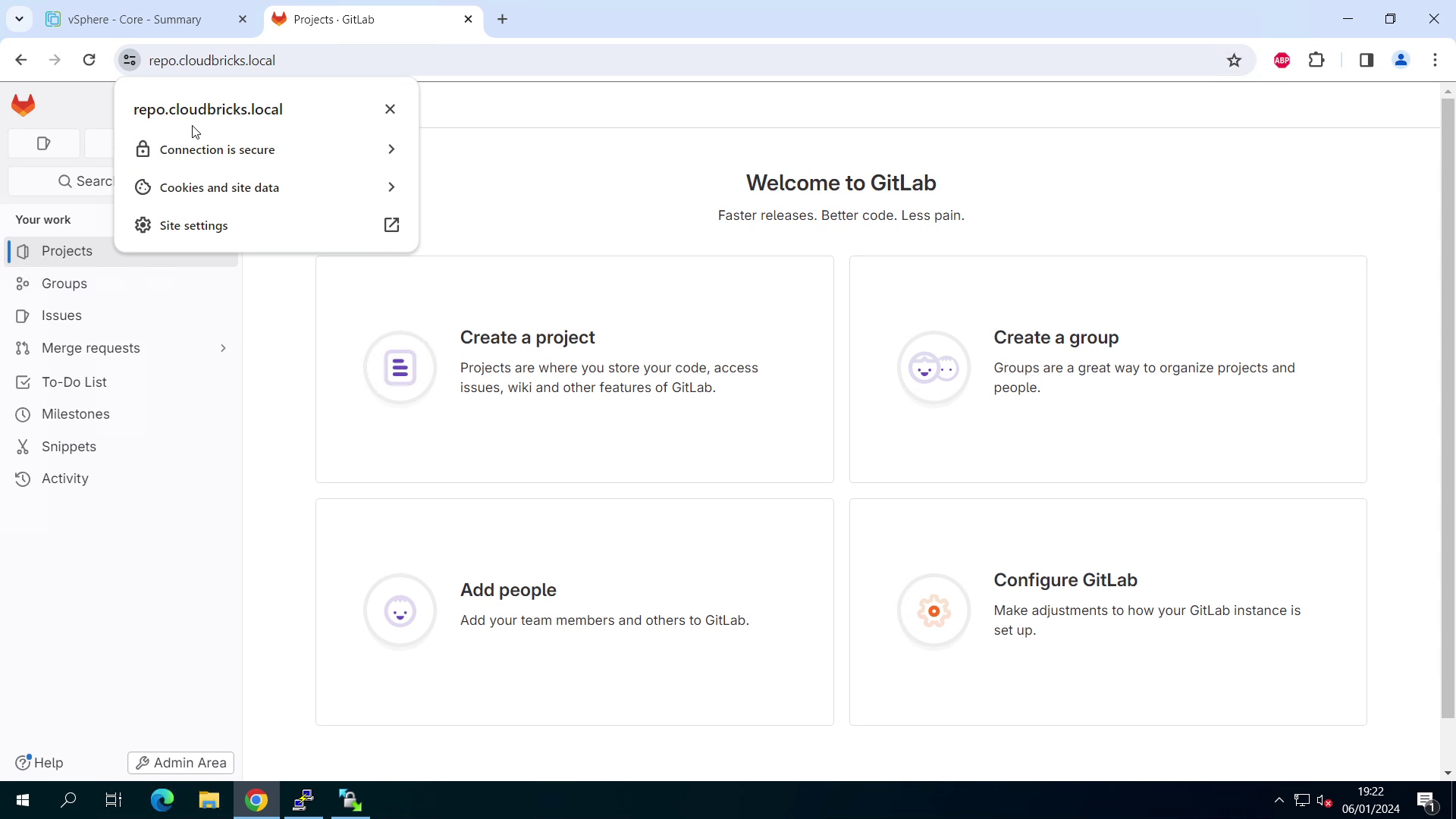

How to Install and Configure GitLab Community Edition
Install and configure GitLab Community Edition on Linux, covering the initial setup, the required configuration changes, and how to get a project running through its CI/CD pipeline.

GitLab Community Edition is a Open-source DecSecOps Platform
GitLab brings Automated tasks to improve the efficiency. Supports
- Continuous Integration and Delivery
- Workflows
- Source Code Management
- Automated Software delivery
Installation:
For this Guide, we will install GitLab community edition on Alma Linux
- Prepare Linux Machine
For Lab purpose i have created a VM with the following specs
- 8vCPU
- 16GB RAM
- 100GB free disk space
- Alma Linux 9 with static IP
- Create the Virtual Machines manually or using Packer template and clone using Terraform/OpenTofu. I have used the OpenTofu code, which will create VM with the required configuration
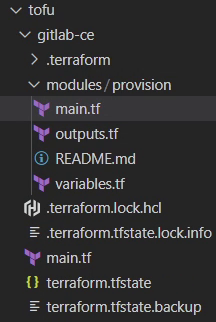
Tofu/terrform code to create GitLab VM from template - Login to GitLab VM and run the following commands.
sudo systemctl disable --now firewalld
this stops the firewall service and disable it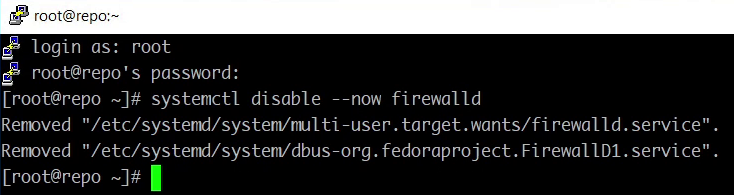
sudo dnf install -y curl policycoreutils openssh-server perl

curl https://packages.gitlab.com/install/repositories/gitlab/gitlab-ee/script.rpm.sh | sudo bash
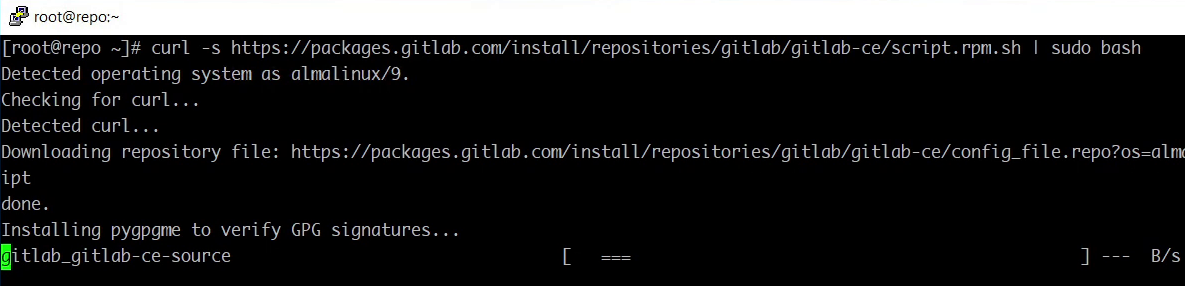
sudo EXTERNAL_URL="http://repo.cloudbricks.local" dnf install -y gitlab
replace the EXTERNAL_URL with the one you need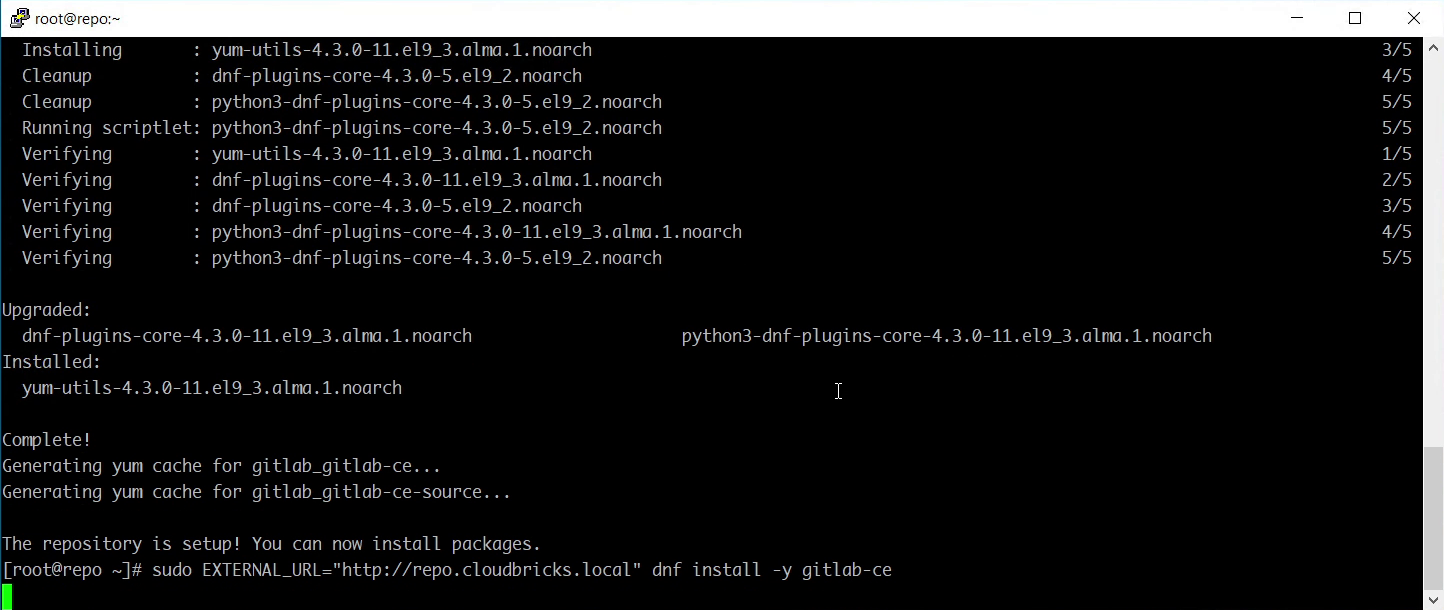
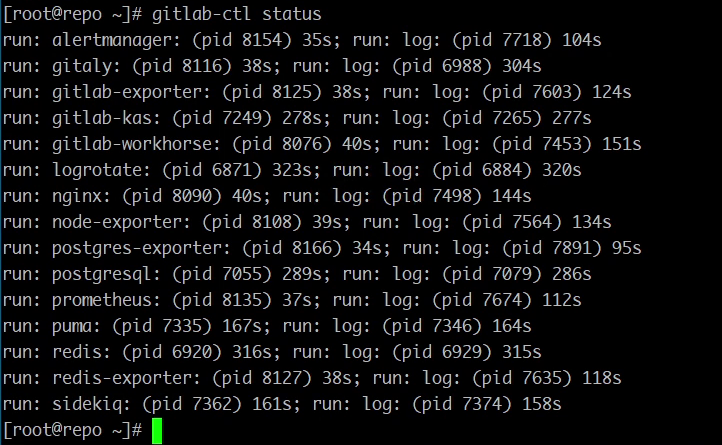
Post complettion of installation, run the fowllowing command to check the status of gitlab.
gitlab-ctl status
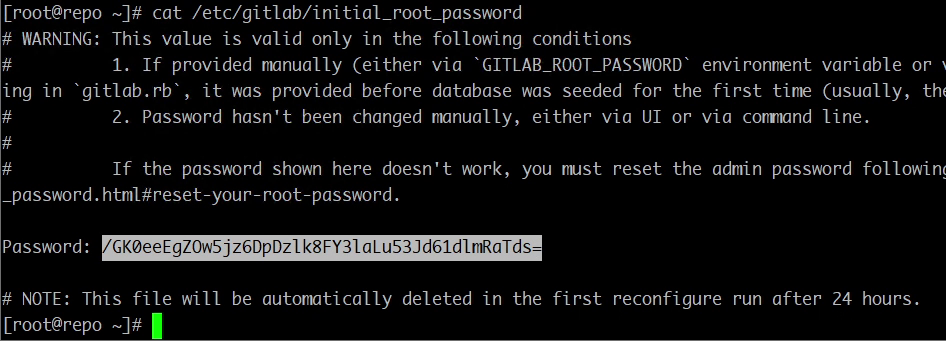
cat /etc/gitlab/initial_root_password
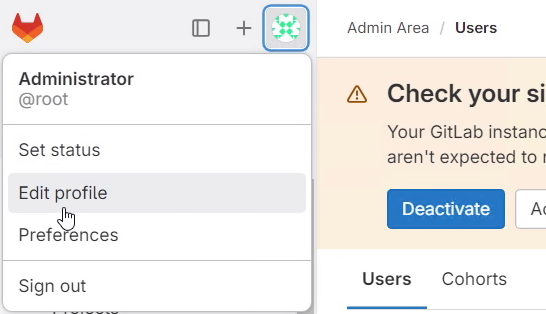
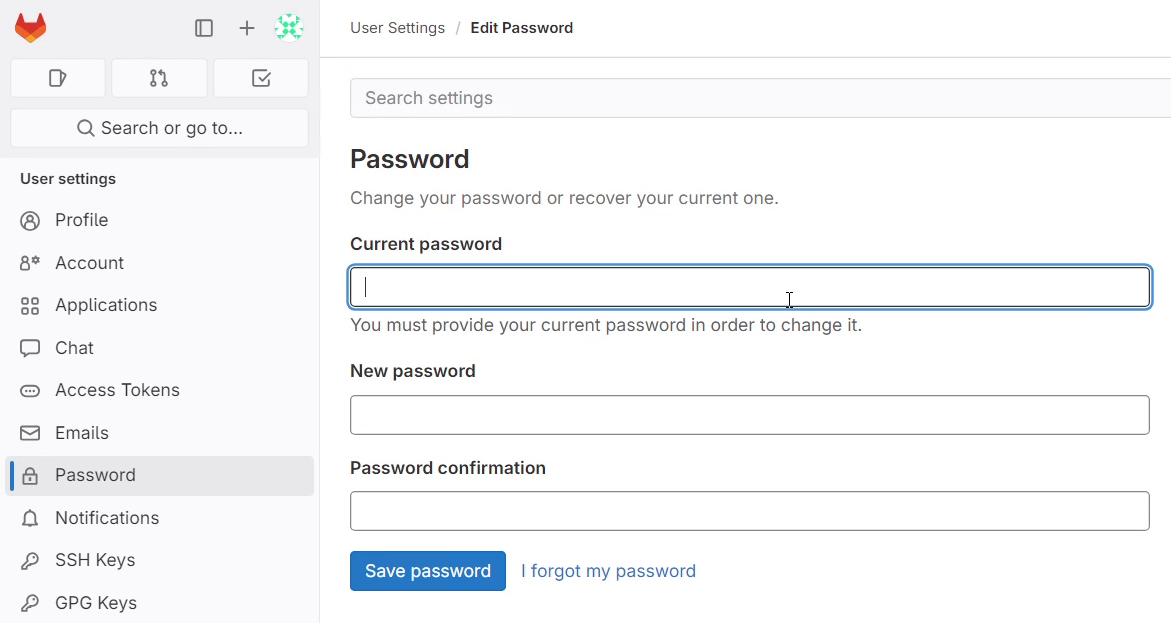
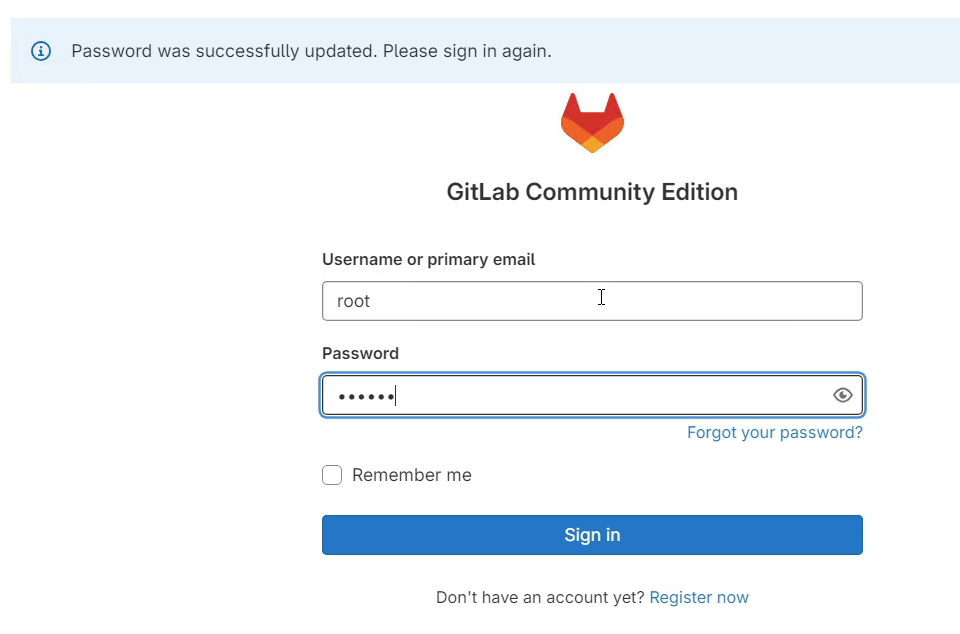
- Change the root password immediately by going to root avatar > Edit profile > Password
Confgure HTTPS:
Login to GitLab VM and edit
/etc/gitlab/gitlab.rb
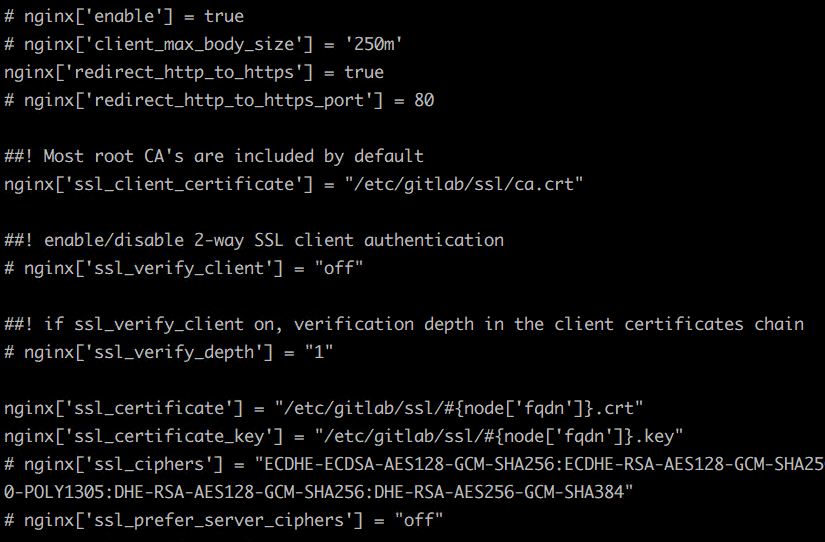
uncomment the following
nginx['ssl_certificate'] = "/etc/gitlab/ssl/#{node['fqdn']}.crt""
nginx['ssl_certificate_key'] = "/etc/gitlab/ssl/#{node['fqdn']}.key"
Uncomment and change this line from False to True
nginx['redirect_http_to_https'] = true
nginx['ssl_client_certificate'] = "/etc/gitlab/ssl/ca.crt"
create a directory called ssl under
/etc/gitlab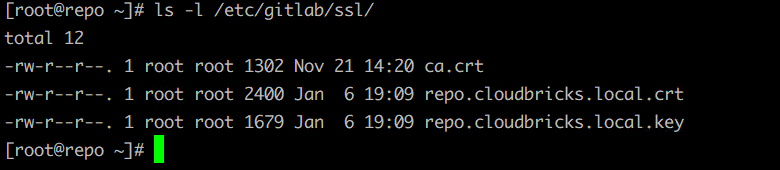
Copy ADCS generated SSL certs to
/etc/gitlab/sslchange the external url from http to https -
external_url 'https://repo.cloudbricks.local'Once the SSL certificates are copied and gitlab.rb is edited properly, run the following command
gitlab-ctl reconfigure
- Refresh the Gitlab URL/ open new tab and access the url