

How to setup Canonical MicroCloud in VMware vSphere using OpenTofu
Deploy Canonical MicroCloud in VMware vSphere using OpenTofu, automating the same cluster that was built by hand in the previous post, with the code hosted on GitHub.
Kishore
5 min read
MicroCloud
In my previsous post, we have deployed the Microcloud using manual setup. This post shows how to setup the Microcloud using OpenTofu/Terraform.
Github Repo for the Code: https://github.com/kkramineni/microcloud
Requirements:
My OpenTofu Code creates the following
| Hostname | IP Address | Specifications |
|---|---|---|
| micro-01 | 192.168.20.50 | 4CPU,8 GB RAM, 40GB for OS, 300GB disk for distributed storage |
| micro-02 | 192.168.20.51 | 4CPU,8 GB RAM, 40GB for OS, 300GB disk for distributed storage |
| micro-03 | 192.168.20.52 | 4CPU,8 GB RAM, 40GB for OS, 300GB disk for distributed storage |
Getting started with setup:
Ensure that the required DNS entries are created

Prepare the OpenTofu code
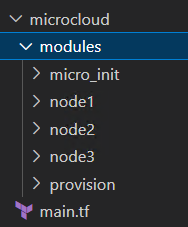
main.tf
// VMware provider details
provider "vsphere" {
  vsphere_server = "vcsa.cloudbricks.local"
  allow_unverified_ssl = true
  user = "Administrator@vsphere.local"
  password = "VMware1!"
}

// Module wise

// this module will provision 3 VMs with required configuration
module "provision" {
  source = "./modules/provision"
}

// this module configures the provisioned VMs (snap refresh, install lxd, microcloud, microceph, microovn)

module "node1" {
  source = "./modules/node1"
  depends_on = [ module.provision ]
}
module "node2" {
  source = "./modules/node2"
  depends_on = [ module.node1 ]
}
module "node3" {
  source = "./modules/node3"
  depends_on = [ module.node2 ]
}

// this module automates the "Microcloud" initialisation and configuration
module "micro_init" {
  source = "./modules/micro_init"
  depends_on = [ module.node3 ]
}
- provision/main.tf
variable "vsphere_datacenter" {
  default = "Lab"
  description = "Datacenter"
}

data "vsphere_datacenter" "dc" {
  name = "Lab"
}
data "vsphere_datastore" "datastore" {
    name = "NVMe2"
    datacenter_id = data.vsphere_datacenter.dc.id

}
data "vsphere_virtual_machine" "template" {
  name  = "ubuntu2204"
  datacenter_id = data.vsphere_datacenter.dc.id
}
data "vsphere_network" "network" {
  name = "cloudbricks"
  datacenter_id = data.vsphere_datacenter.dc.id
}
data "vsphere_resource_pool" "pool" {
  name = "Resources"
  datacenter_id = "${data.vsphere_datacenter.dc.id}"
}


resource "vsphere_virtual_machine" "vm-01" {
  name = "micro-01"
  folder = "Microcloud"
  num_cpus = 4
  num_cores_per_socket = 4
  memory = 8192
  nested_hv_enabled = true

  guest_id = data.vsphere_virtual_machine.template.guest_id
  scsi_type = data.vsphere_virtual_machine.template.scsi_type
  firmware = data.vsphere_virtual_machine.template.firmware
  //datacenter_id = data.vsphere_datacenter.dc.id
  resource_pool_id = data.vsphere_resource_pool.pool.id
  datastore_id = data.vsphere_datastore.datastore.id

  network_interface {
    network_id = data.vsphere_network.network.id
    adapter_type = "vmxnet3"
  }
  disk {
    label = "disk0"
    thin_provisioned = true
    size = data.vsphere_virtual_machine.template.disks.0.size
    unit_number = 0

  }
  disk {
    label = "disk1"
    thin_provisioned = true
    size = "300"
    unit_number = 1
  }


  clone {
    template_uuid = data.vsphere_virtual_machine.template.id
    customize {
      linux_options {
        host_name = "micro-01"
        domain = "cloudbricks.local"
      }
      network_interface {
        ipv4_address = "192.168.20.50"
        ipv4_netmask = "24"
      }
      ipv4_gateway = "192.168.20.254"
      dns_server_list = ["192.168.0.5"]
      dns_suffix_list = ["cloudbricks.local"]
    }
  }


}

resource "vsphere_virtual_machine" "vm-02" {
  name = "micro-02"
  folder = "Microcloud"
  num_cpus = 4
  num_cores_per_socket = 4
  memory = 8192
  nested_hv_enabled = true

  guest_id = data.vsphere_virtual_machine.template.guest_id
  scsi_type = data.vsphere_virtual_machine.template.scsi_type
  firmware = data.vsphere_virtual_machine.template.firmware
  //datacenter_id = data.vsphere_datacenter.dc.id
  resource_pool_id = data.vsphere_resource_pool.pool.id
  datastore_id = data.vsphere_datastore.datastore.id

  network_interface {
    network_id = data.vsphere_network.network.id
    adapter_type = "vmxnet3"
  }
  disk {
    label = "disk0"
    thin_provisioned = true
    size = data.vsphere_virtual_machine.template.disks.0.size
    unit_number = 0

  }
  disk {
    label = "disk1"
    thin_provisioned = true
    size = "300"
    unit_number = 1

  }

  clone {
    template_uuid = data.vsphere_virtual_machine.template.id
    customize {
      linux_options {
        host_name = "micro-02"
        domain = "cloudbricks.local"
      }
      network_interface {
        ipv4_address = "192.168.20.51"
        ipv4_netmask = "24"
      }
      ipv4_gateway = "192.168.20.254"
      dns_server_list = ["192.168.0.5"]
      dns_suffix_list = ["cloudbricks.local"]
    }
  }


}

resource "vsphere_virtual_machine" "vm-03" {
  name = "micro-03"
  folder = "Microcloud"
  num_cpus = 4
  num_cores_per_socket = 4
  memory = 8192
  nested_hv_enabled = true

  guest_id = data.vsphere_virtual_machine.template.guest_id
  scsi_type = data.vsphere_virtual_machine.template.scsi_type
  firmware = data.vsphere_virtual_machine.template.firmware
  //datacenter_id = data.vsphere_datacenter.dc.id
  resource_pool_id = data.vsphere_resource_pool.pool.id
  datastore_id = data.vsphere_datastore.datastore.id

  network_interface {
    network_id = data.vsphere_network.network.id
    adapter_type = "vmxnet3"
  }
  disk {
    label = "disk0"
    thin_provisioned = true
    size = data.vsphere_virtual_machine.template.disks.0.size
    unit_number = 0

  }
  disk {
    label = "disk1"
    thin_provisioned = true
    size = "300"
    unit_number = 1
  }

  clone {
    template_uuid = data.vsphere_virtual_machine.template.id
    customize {
      linux_options {
        host_name = "micro-03"
        domain = "cloudbricks.local"
      }
      network_interface {
        ipv4_address = "192.168.20.52"
        ipv4_netmask = "24"
      }
      ipv4_gateway = "192.168.20.254"
      dns_server_list = ["192.168.0.5"]
      dns_suffix_list = ["cloudbricks.local"]
    }
  }


}
- node1/main.tf
resource "null_resource" "micro-01" {
    connection {
      user = "kishore" // relace with your username
      password = "VMware1!" //replace with your password
      host = "micro-01.cloudbricks.local" //replace with your hostname
    }
    provisioner "remote-exec" {
      inline = [
        "sudo apt-get update",
        "sudo snap refresh",
        "sudo snap install lxd microceph microcloud microovn --cohort=\"+\"",
        "sudo snap refresh lxd --channel=latest/stable"
       ]
    }
}
- node2/main.tf
resource "null_resource" "micro-02" {
    connection {
      user = "kishore" // relace with your username
      password = "VMware1!" //replace with your password
      host = "micro-02.cloudbricks.local" //replace with your hostname
    }
    provisioner "remote-exec" {
      inline = [
        "sudo apt-get update",
        "sudo snap refresh",
        "sudo snap install lxd microceph microcloud microovn --cohort=\"+\"",
        "sudo snap refresh lxd --channel=latest/stable"
       ]
    }
}
- node3/main.tf
resource "null_resource" "micro-03" {
    connection {
      user = "kishore" // relace with your username
      password = "VMware1!" //replace with your password
      host = "micro-03.cloudbricks.local" //replace with your hostname
    }
    provisioner "remote-exec" {
      inline = [
        "sudo apt-get update",
        "sudo snap refresh",
        "sudo snap install lxd microceph microcloud microovn --cohort=\"+\"",
        "sudo snap refresh lxd --channel=latest/stable"
       ]
    }
}
- micro_init/main.tf
resource "null_resource" "Microcloud-init" {

    connection {
      user = "kishore"
      password = "VMware1!"
      host = "micro-01.cloudbricks.local"
    }

    provisioner "file" {
      source = "/opt/code/tofu/microcloud/modules/micro_init/preseed.yaml"
      destination = "/tmp/preseed.yaml"
    }

    provisioner "remote-exec" {
      inline = [
        "cat /tmp/preseed.yaml | sudo microcloud init --preseed",
        "sudo snap set lxd ui.enable=true",
        "sudo systemctl reload snap.lxd.daemon"
       ]
    }

}
- micro_init/preseed.yaml
lookup_subnet: 192.168.20.50/24
systems:
- name: micro-01
  storage:
    ceph:
      - path: /dev/sdb
        wipe: true
- name: micro-02
  storage:
    ceph:
      - path: /dev/sdb
        wipe: true
- name: micro-03
  storage:
    ceph:
      - path: /dev/sdb
        wipe: true
Once the Code is ready with folder structure and files.
Complete the following steps to provision and initialise the MicroCloud:
- From the server, where Terraform/OpenTofu is installed:
tofu init
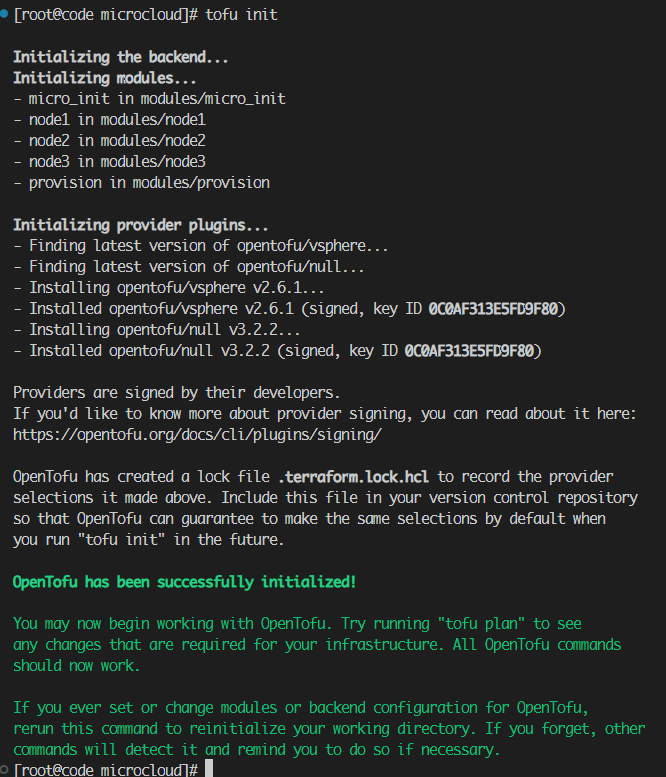
- tofu plan
tofu plan

- tofu apply and enter yes, when prompted or tofu apply –auto-approve
tofu apply --auto-approve

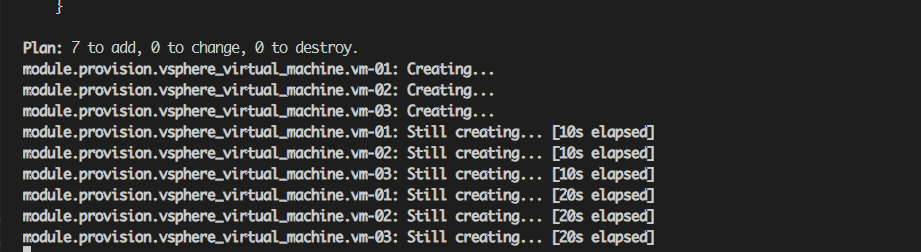
- After the initialisation is complete, run the fowlling commands to confirm the setup.
"in micro-01, login with your credentials and run the following"
lxc cluster list
lxc storage list
lxc network list
lxc profile show default
Web UI is enabled part of config:
- Access the UI in your browser by entering the server address (for example, https://micro-01.cloudbricks.local:8443).
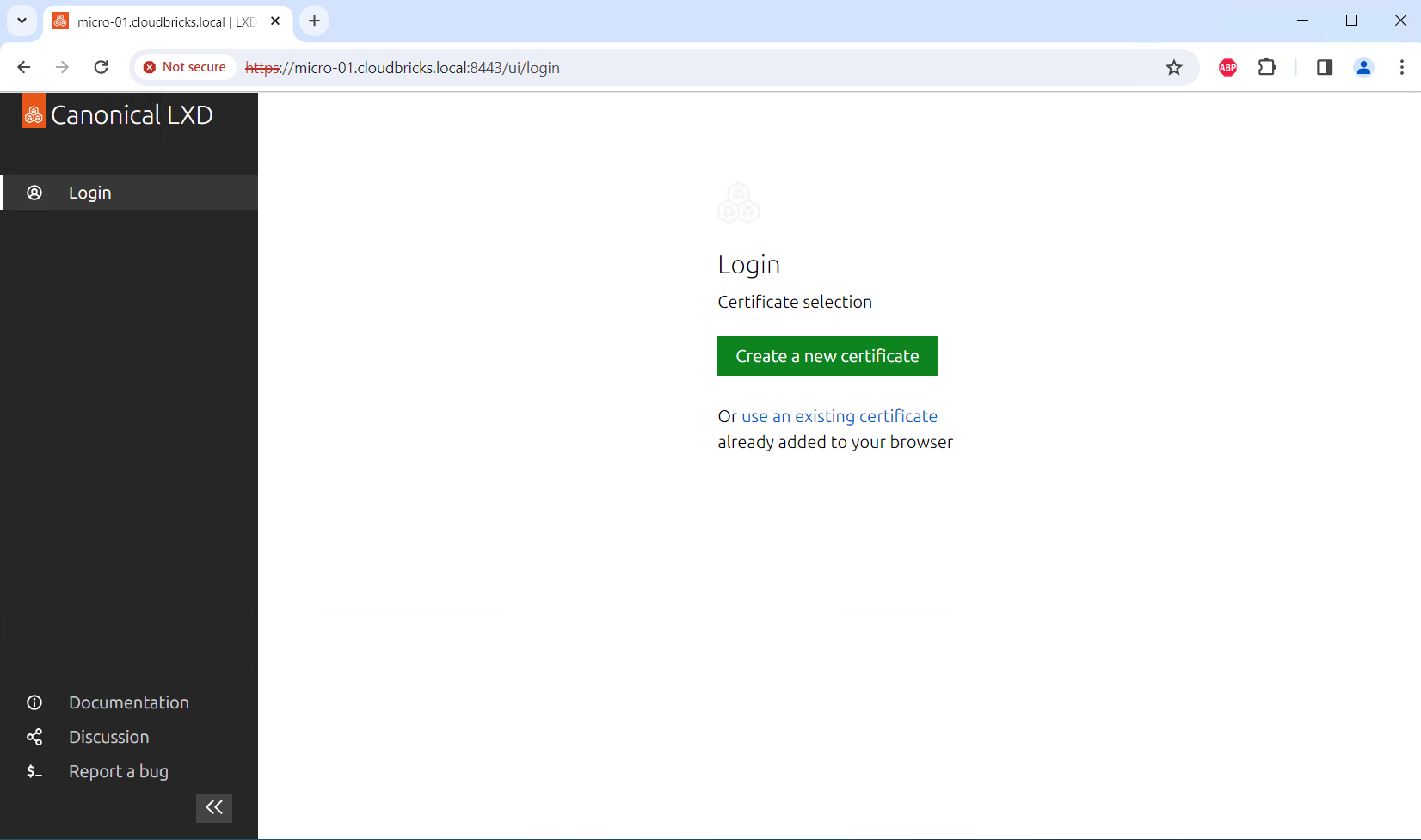
- Set up the certificates that are required for the UI client to authenticate with the LXD server by following the steps presented in the UI. These steps include creating a set of certificates, adding the private key to your browser, and adding the public key to the server’s trust store.
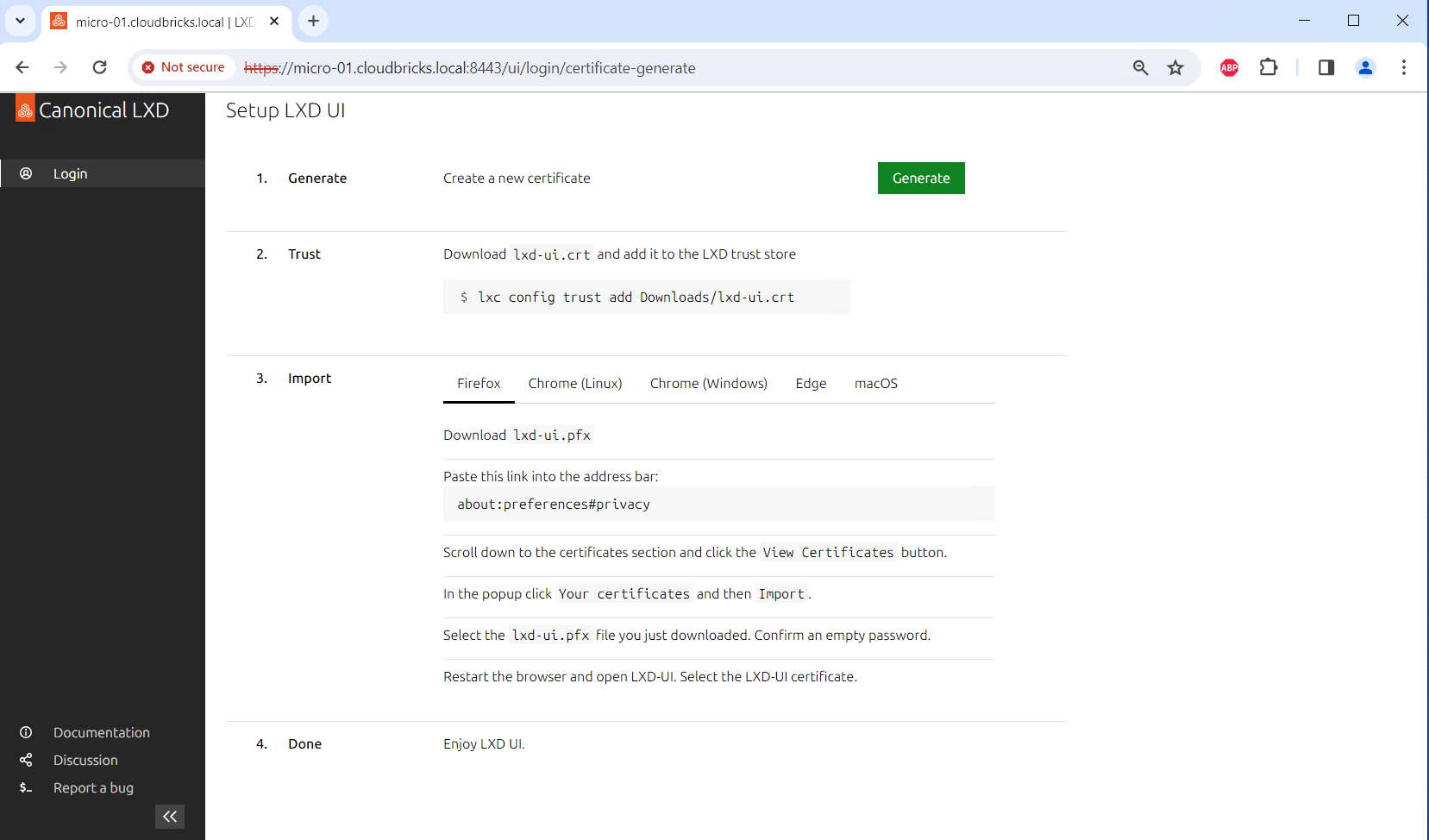
- After setting up the certificates, you can start creating instances, editing profiles, etc.